

The Workday Adaptive Planning 2023 R1 release is out and features updates to workforce planning, improving modelling capabilities, and bolstering reporting functionality. Key highlights include compensation grade modelling, and improved sheet management.
What’s new in the 2023 R1 release:
Web Reports
Drill-down options
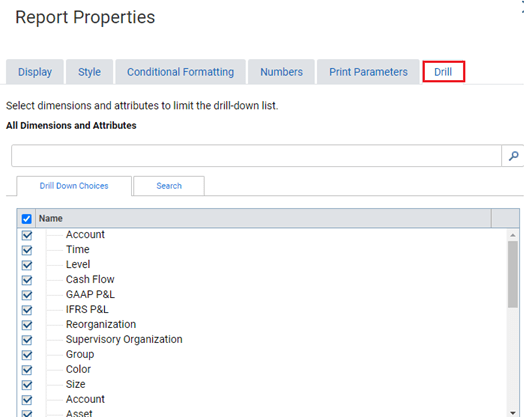
The drilling capabilities in Web Reports has been enhanced, allowing report developers the ability to control the drill through options for reports.
In Report Properties there is a new tab labelled Drill. Here, report developers are able to select and deselect the dimensions and attribute available for the end user to explore. If nothing is selected, all options will be available.
User experience updates
- Parameters can be expanded or collapsed from the report viewer
- Updates to the report snapshot and report download pages
- Ability to cancel and return to the previous page when on the report prompting page
- Ability to refresh entire matrix report viewer after making a parameter change or selecting save as
Dashboards
Some of the most exciting enhancements that have come out of the Workday Adaptive Planning 2023R1 release are related to dashboards.
Scatter Charts
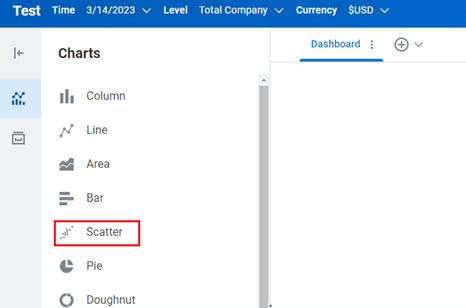
Scatter charts have been introduced in Workday Adaptive Planning dashboards. This can be found alongside all of the other visualisations available for analysis.
Web Report Links
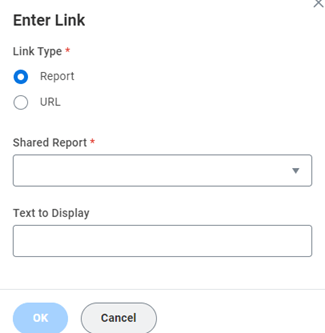
Users are now able to set up links on dashboards to web reports, making the process of navigating between dashboards and reports easier. It also allows you to analyse your plans from a single location.
From the charts option, insert a Text. From the popup menu, select Insert Link

You can then either select a Shared Report or insert the report URL.
Snapshot schedules
Dashboard snapshot schedules can now be paused and resumed on command. A new column is also included in the schedule to identify whether the schedule is paused or active.
Sheets on dashboards
The “Optimise Sheet” option has been enhanced. Specifically for modelled sheets, when the optimise sheet property is enabled, users are now able to:
- Add rows
- Copy and Paste multiple rows
- Save changes made to the sheet
- Add, edit and delete values.
For all sheets, when the “Optimise Sheet” has been enabled, there is also the option to change the column width and view cell notes in a pop-up window.
Sheets
Creating a new Level Assigned or Assumption Sheet has been made easier with the addition of an Add New button from the Sheets overview page. Similar to the function in the Report Overview Page, this will allow you to quickly create a new sheet.
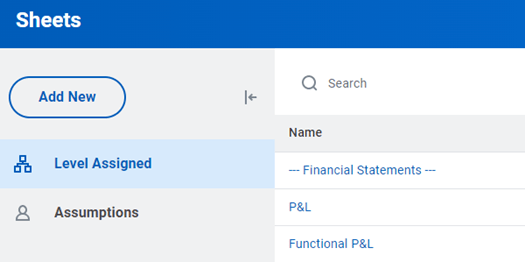
There is also a new menu for each row which will allow you to rename, edit and delete the sheet.
Display cube sheet size
Users are now able to view the percent of capacity a cube sheet is consuming by version. If capacity on a cube sheet is fully consumed, the sheet will not be able to display data.
To view the capacity of a cube sheet, select Edit next to the sheet name from the overview section of either the Level assigned or Assumption sheet. From here, the new View Capacity option will appear.
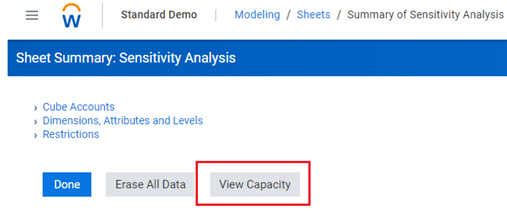
Users will then be prompted to select a version.
Please note – this function is only available on cube sheets.
Row totals in cube sheets
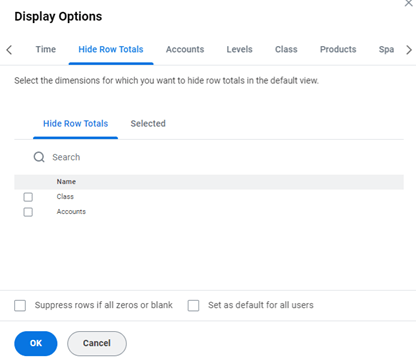
Users can now customise which row totals are visible on cube sheets. By navigating to the display options in a cube sheet, select the Hide Row Totals tab.
Modelling
Version availability for list dimensions
There is now a List dimension property available under dimension details.
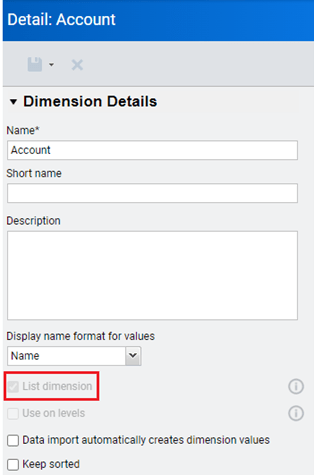
By selecting one of the dimension values, we can see that there is a version settings property, allowing you to select which version to make available.
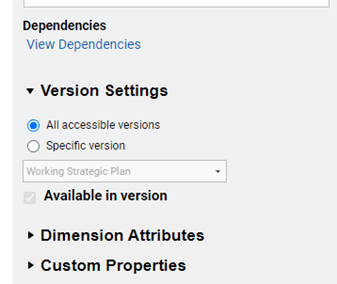
By selecting Generate printable view you are able to Bulk update the dimension values to specify whether they are “available” or “not available” in the version column.

Dimension dependencies
It is now easier to see where a model uses and references dimension values through the view dependencies property. This allows you to find and erase data against a dimension prior to deleting the dimension.
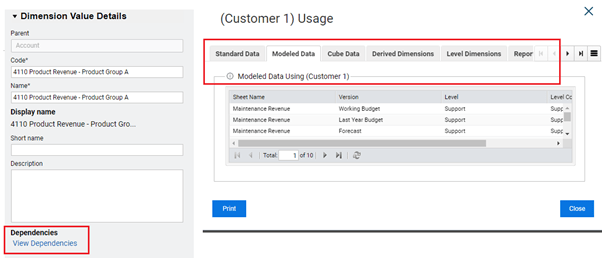
Under view dependencies, there are new tabs which provide further information around issues that must be resolved before you are able to delete the dimension value.
Integrating source systems with Workday Adaptive Planning
Connect with us and stay up to date with Workday Adaptive Planning news and releases: