
What are Web Reports?
Workday Adaptive Planning Web Reports is a built-in, browser-based reporting tool that lets users quickly build and view reports directly within the Adaptive platform.
It provides finance and business teams with instant, self-service access to live data without needing to export information or leave the cloud environment.

Web Reports tutorials and articles
Dive into comprehensive Workday Adaptive Planning Web Report tutorials and articles, created by our team of experts and consultants.

How to create dynamic web reports in Workday Adaptive Planning
Here are ways users can build and structure web reports in Workday Adaptive Planning. The main concepts covered are Rolling 12 month reports, Timespan reports, and Previous Month YTD reports.
Tips for best practice Web Reports in Adaptive Planning
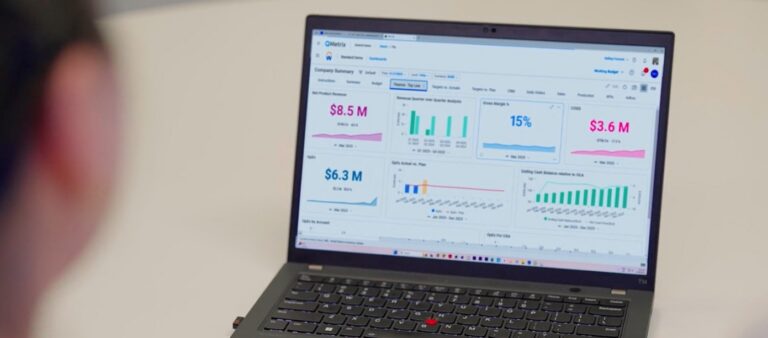
Web Reports are built and maintained in your Adaptive Planning instance, here are our best practice tips to make the most out of Web Reports.
Workday Adaptive Planning technical tips
Watch Web Report tips:
Two Minute Tuesday videos
Two Minute Tuesdays are a video series that deliver quick, bite-sized Workday Adaptive Planning technical tips in two minutes. Created by the QMetrix team, these practical tutorials help users optimise and troubleshoot their planning and reporting workflows, and are watched by thousands worldwide. Watch the tips and tricks here to enhance Web Reports and level up your skills.
How to run an audit trail report in Web Reports
Have you found that your numbers are changing in Adaptive Planning and you’re not sure why? Here’s how to run audit trail reports that can help produce an activity log of changes made to the data in the system.
How to create model reports in Workday Adaptive Planning
Model reports are designed to display data specifically from model sheets in a list view format, including all available accounts and text columns. Here is a step-by-step tutorial on how to create and configure model reports within Workday Adaptive Planning.
How to incorporate multi-select filtering
Can you select multiple dimension values in filter? Yes. In this video we explore how to incorporate multi-select filtering across OfficeConnect, Web Reports and Dashboards in Workday Adaptive Planning.
How to use the multi-select feature in reports and dashboards
In this video we look at how to enable and use the multi-select feature, level parameters, and how to slice and dice data in a specific way.
How to create calculations in reports
There are 3 different types of calculations available to users in web reporting: Subtotal, Difference and Custom. This video discusses the differences between these calculations and provide common examples of where they work best.
How to create reusable matrix reports
Want to know how to make matrix report building quicker? The answer lies within the reusable report functionality. It saves you time by not having to repeat elements and format settings, while bringing consistency across reports in Workday Adaptive Planning.
How to build a rolling 12 month forecast report
A common business requirement is to be able to see a forecast for the next 12 months. This video steps you through how to set up a rolling 12 month forecast report using relative periods in web reporting.
How to format reports in Workday Adaptive Planning
Good formatting helps to add a level of professionalism and sophistication to reporting suites. This video discusses some tips and tricks on how to transform your report with a variety of formatting techniques.
How to build a Prior Month Year to Date (YTD) report with Web Reports
Relative dates allow reports to update the time period dynamically, rather than relying on user input. This video utilises relative dates to drive a Prior Month Year to Date report.
How to use filters and parameters in reports
What happens when you want to target more than one audience with a report? The use of parameters provide end users with control of how they want to specifically view the report by prompting the user to select an element. This video discusses the concept of Filters vs Parameters and how to use them in web reporting.
How to repeat reports in Web Reporting
Repeating reports allow you to create one report with a repeating element, so that a new report is created for each variable. The following video demonstrates how Repeating Reports can be applied in web reporting.
Conditional formatting with traffic lights
We commonly get asked by our clients how to incorporate a traffic light system in reports to indicate any Positive, Negative or Neutral values at a glance. This video introduces the concept of conditional formatting and discusses how to incorporate icons/traffic lights with a calculation within web reporting.
Looking for more Workday tips?
Workday Adaptive Planning services for finance teams
QMetrix has implemented 100+ solutions for finance teams, and have been named APAC Partner of the Year by Workday Adaptive Planning. We provide end-to-end services from analysis to design and implementation. Learn how we can help.

Workday Adaptive Planning Implementation
Ensure your platform is built on best practice, unique to what your business needs – deliver short-term wins and long-term goals

Workday Adaptive Planning Health Check
Already a Workday Adaptive Planning user? Review your current instance and optimise it for maximum return

Workday Adaptive Planning Integration
Connect Workday Adaptive Planning with your source systems for smooth data flows and accurate, timely data
Want to receive Workday Adaptive Planning news?
Get the latest videos and release information in our newsletter. Fill in the form below to subscribe.